In short: Most attacks on WordPress hosting are automated: password guessing through
xmlrpc.phpandwp-login.php, PHP uploaded intowp-content/uploads, and known holes in outdated plugins. Block XML-RPC and PHP in uploads at the web server, keep plugins patched with a vulnerability feed, disable the file editor, rename any "admin" user, lockwp-config.php, and keep immutable off-server backups.
WordPress powers a large share of the web, so every WordPress site is scanned and attacked within minutes of going live. This checklist is written for people who host WordPress sites for themselves or for clients. Each item says why it matters and how to do it in AIO Panel, where most items are one click in the WordPress toolkit.
What a real attack looks like
On one of our production servers, a single IP address sent 532 requests to xmlrpc.php in ten minutes at a WooCommerce shop. In the same ten minutes the shop answered only 37 normal page requests. Every one of the attack requests started a PHP worker, so the attack used more CPU than all real visitors together.
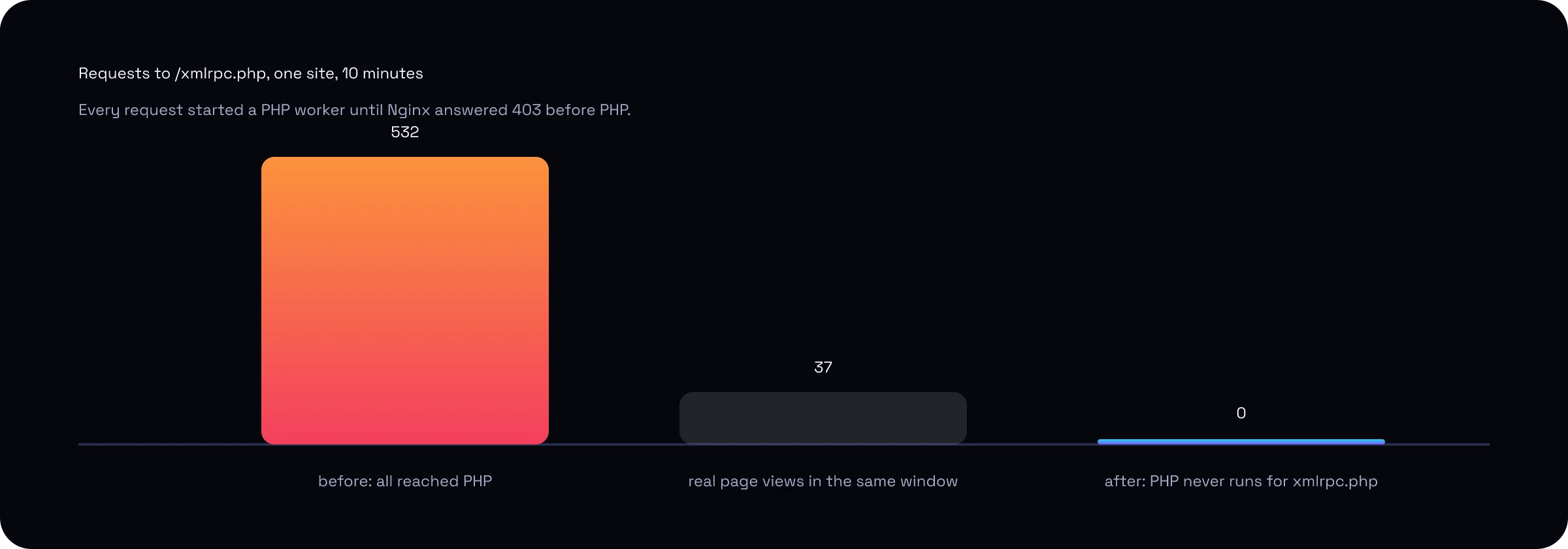
After one click on Block XML-RPC, Nginx answers these requests with 403 Forbidden before PHP runs. PHP time spent on the attack dropped to zero, and the server's load went back to normal.
The WordPress hosting security checklist
| # | Protection | Why it matters | In AIO Panel |
|---|---|---|---|
| 1 | Block XML-RPC | Brute-force and pingback DDoS target | WordPress → site → Security → Block XML-RPC |
| 2 | Block PHP in uploads | Uploaded files must never execute | Security → Block PHP in uploads |
| 3 | Disable the file editor | A stolen admin password cannot inject PHP | Security → Disable the file editor |
| 4 | No user named "admin" | The first username bots try | Security → Rename |
| 5 | Lock wp-config.php | Database credentials readable only by the owner | Security → Lock wp-config.php |
| 6 | Hide the version | Stops version fingerprinting | Security → Hide the WordPress version |
| 7 | Directory browsing off | No listing of folders without an index | Security → Disable directory browsing |
| 8 | Debug output off | No file paths or errors shown to visitors | Security → Debug output off |
| 9 | Vulnerability feed | Know the day a plugin you run is exploitable | WordPress → Vulnerability scanning |
| 10 | Updates | Most compromises use known, patched holes | WordPress → site → Updates |
| 11 | Web application firewall | Stops common exploit payloads | Security → WAF (ModSecurity + OWASP CRS) |
| 12 | Brute-force bans | Repeated failures lock the attacker out | Security → Fail2ban |
| 13 | Off-server, immutable backups | Ransomware cannot delete what it cannot reach | Backups → Destinations, Object Lock |
| 14 | One account per site | A compromised site cannot read its neighbours | Accounts |
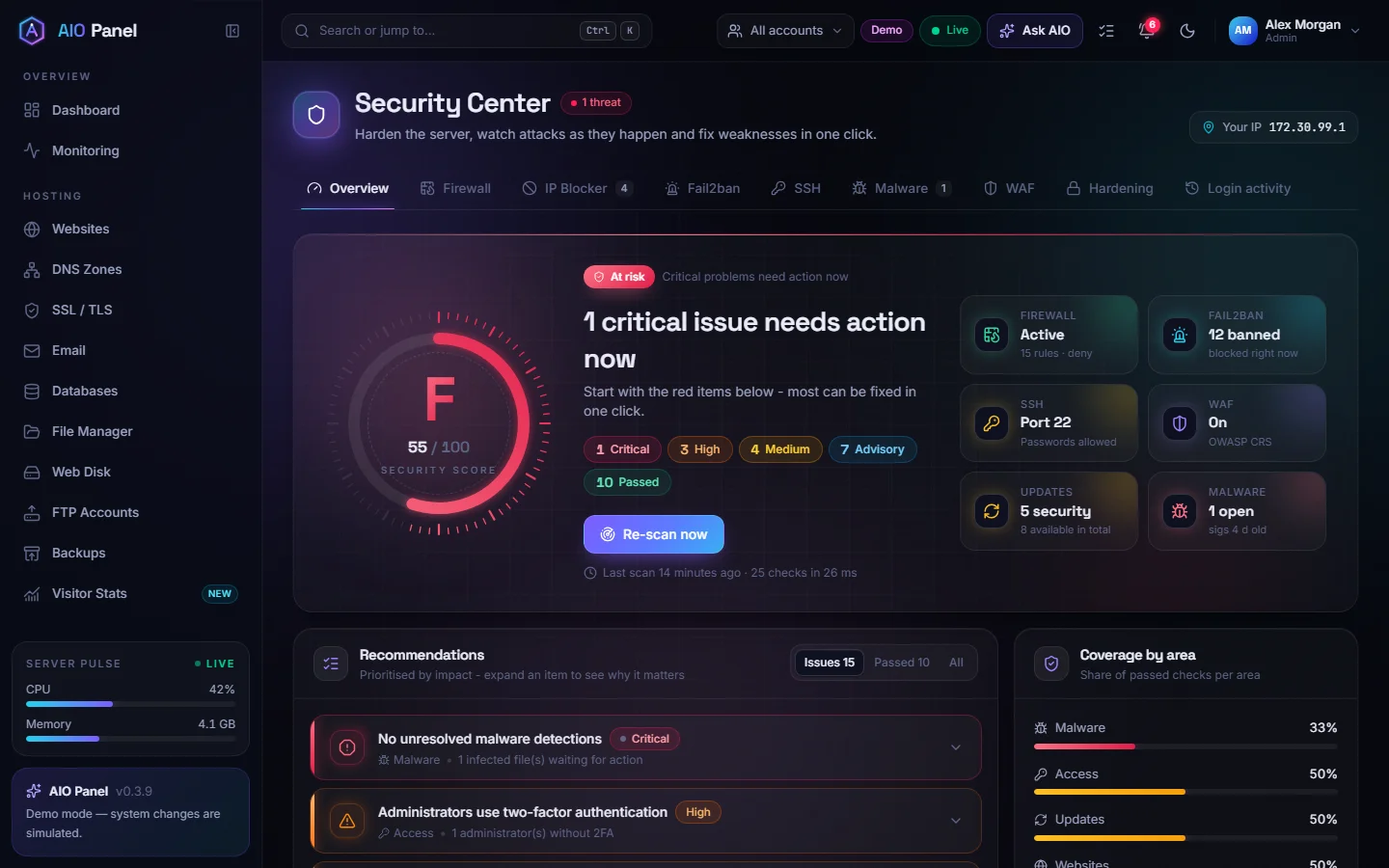
The Apply all recommended button on a site's Security tab applies the recommended protections in one go, and the site's security score shows what is left. Every rule can be reverted.
1. Block XML-RPC at the web server
xmlrpc.php lets a client call WordPress functions remotely. Its system.multicall method tests hundreds of passwords in one request, and pingbacks can be abused to attack other sites. Few sites still need it; the Jetpack plugin and some old mobile apps are the main exceptions.
Blocking it in a WordPress plugin is not enough, because PHP still starts for every request. AIO Panel writes an Nginx rule (location = /xmlrpc.php { deny all; }), validates it with nginx -t and reloads, so the request never reaches PHP.
2. Never let PHP run in wp-content/uploads
Upload forms, vulnerable plugins and stolen editor accounts all end the same way: a .php file in the uploads folder that the attacker then opens in a browser. A web server rule that refuses any .php, .phtml or .phar request under wp-content/uploads defeats this whole class of attack, even when the upload itself succeeded.
3 to 6. Remove the easy wins for attackers
- Disable the file editor (
DISALLOW_FILE_EDIT): with a stolen admin password, the theme and plugin editors are a direct path to running code. - Rename the "admin" user: password guessing always starts with
admin. - Lock
wp-config.phpto mode0400, so only the site's own user can read the database password. - Hide the WordPress version: remove the generator tag and block
readme.html, which advertise exactly which holes apply.
9 and 10. Patch fast, with a vulnerability feed
Outdated plugins are the most common way into a WordPress site. AIO Panel checks every plugin and theme against the Wordfence Intelligence vulnerability feed every six hours and lists affected sites on the Vulnerabilities tab. Turn on automatic minor and security updates for core, and update plugins weekly.
11 and 12. Put a firewall and ban list in front
The ModSecurity web application firewall with the OWASP Core Rule Set blocks SQL injection, file inclusion and common exploit payloads before they reach WordPress. Fail2ban watches the logs and bans IP addresses after repeated failed logins. Both are in the Security Center, with per-website exceptions when a plugin needs one.
13. Keep backups the attacker cannot delete
A backup on the same server is not a backup if the server is compromised. Schedule nightly backups to an off-server destination such as S3, Backblaze B2 or SFTP. For ransomware protection, use a bucket with Object Lock and set the destination to Compliance mode: nobody, not even you, can delete an archive before its retention date. Test a restore once a month; AIO Panel can prove a restore automatically.
14. Isolate every site
Host each website in its own account. Each account runs PHP as its own user with its own PHP-FPM pool, so a compromised site cannot read the files or database passwords of its neighbours. It also keeps one busy site from slowing down the others.
FAQ
Should I disable XML-RPC in WordPress?
Yes, unless you use Jetpack or a client that needs it. Block it at the web server rather than with a plugin, so attack requests never start PHP.
Is a security plugin enough to protect WordPress?
No. Security plugins run inside WordPress, after PHP has already started for every request. Server-level rules, a web application firewall and isolation between sites stop attacks earlier and use far fewer resources.
How often should I update WordPress plugins?
Apply security updates as soon as they are released and other updates at least weekly. A vulnerability feed tells you which installed plugins need an urgent update.
How do I protect WordPress backups from ransomware?
Store them off the server in a bucket with Object Lock in Compliance mode, so no account on the server can delete or overwrite an archive before its retention period ends.