In short: To migrate from cPanel to AIO Panel, install AIO Panel on the new server, open Migration, point it at a cPanel backup (upload, URL or SSH), review the analysis and start the import. Test each site through your hosts file, then lower and switch DNS. Files, databases with their passwords, mailboxes, DNS zones and cron jobs move automatically.
Moving hosting accounts is the part of changing control panels that everyone dreads. This guide shows the whole process for one account and for a full server, including the checks that prevent downtime and lost email. It is based on real migrations of production cPanel servers.
What do I need before migrating from cPanel?
- A new server with Ubuntu 22.04, 24.04 or Debian 12 and AIO Panel installed (one command from the download page).
- A Pro or Business plan on the new server. Migration is included in both, with a 14-day free trial.
- Root SSH access to the cPanel server, or cPanel backups (
cpmove-<user>.tar.gz) you can upload. - Enough disk space for the accounts plus the backup archives during the import.
- Access to your DNS, wherever the domains' nameservers are.
Step 1: Lower the DNS TTL a day before
Set the TTL of the A, AAAA and MX records to 300 seconds at least 24 hours before the move. When you switch, visitors and mail servers pick up the new address within minutes instead of hours.
Step 2: Install AIO Panel and create packages
Install AIO Panel on the new server. Under Accounts → Packages, create packages with the limits you sold on cPanel (disk, bandwidth, email accounts, databases). Imported accounts are assigned to a package during the review.
Step 3: Choose how to bring the account over
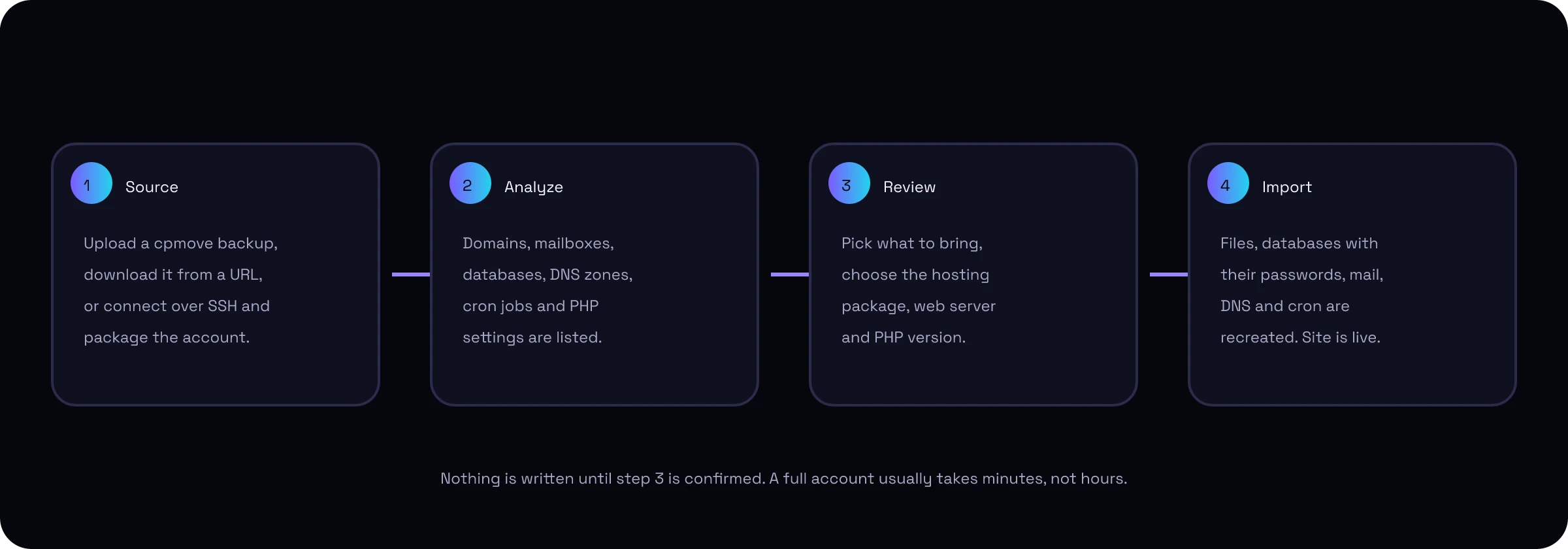
Open Migration. There are three sources for cPanel:
| Source | When to use it |
|---|---|
| Remote | The old server is still running. The panel connects over SSH, packages the account with pkgacct and downloads it. The password or key is used for this job only and then deleted. |
| URL | The backup is already on a web or object storage server. |
| Upload | You have the cpmove archive on your computer. |
For a whole server, Remote is the fastest: one connection, then each account is packaged and imported in turn.
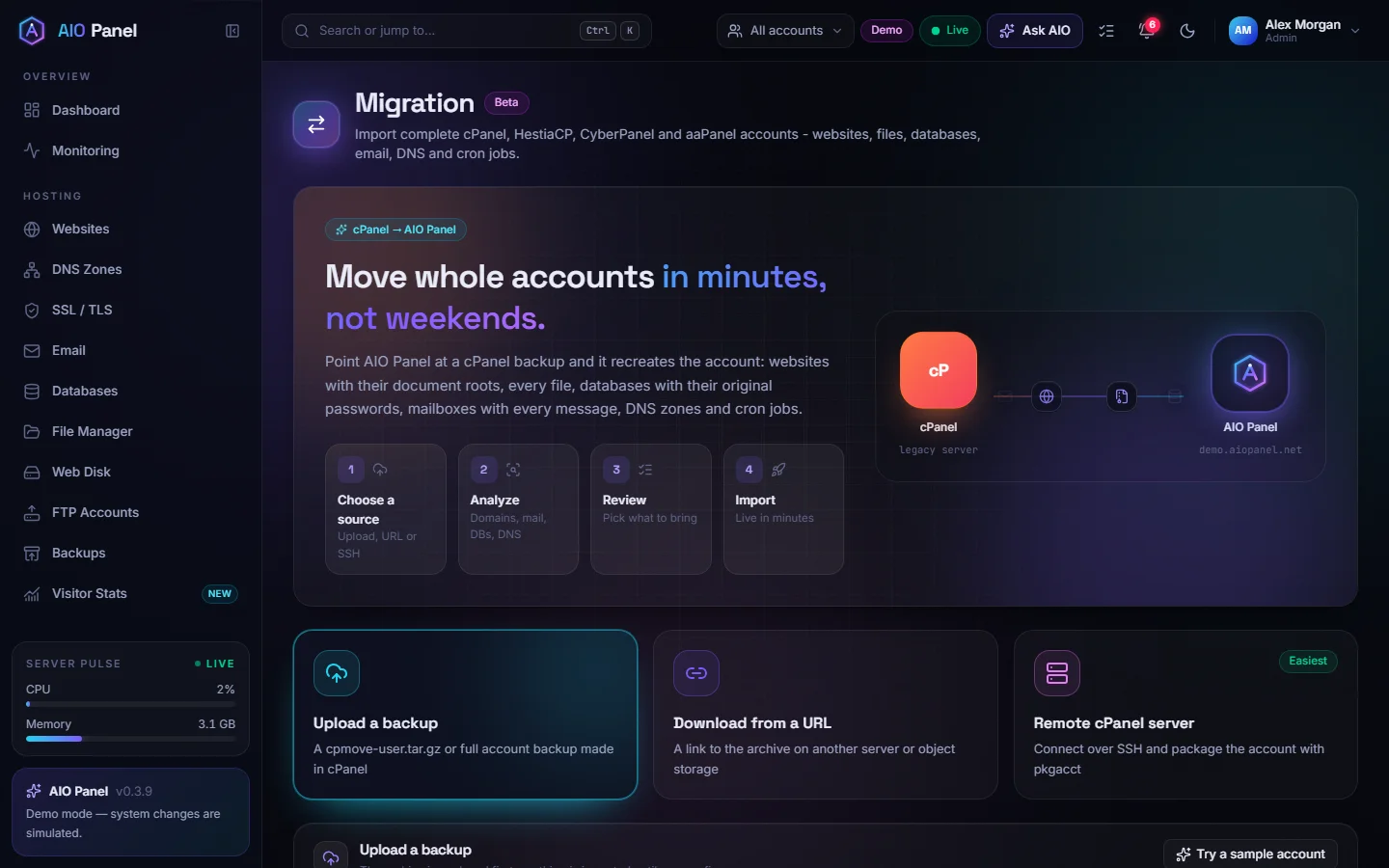
Step 4: Analyze and review
Click Analyze. AIO Panel lists the websites, databases, mailboxes and DNS zones in the backup, plus conflicts such as a username that already exists. On the Review screen you can:
- untick anything you do not want to bring;
- pick the package and the owner (a reseller, for example);
- choose the web server (Nginx, Apache or OpenLiteSpeed, when installed) for the websites.
Nothing is written to the server until you confirm.
Step 5: Import and read the report
The import runs as a background task. The report at the end lists what was created and every adjustment the importer made. The important ones:
- Database users get the account prefix used everywhere in the panel. WordPress
wp-config.phpfiles are updated automatically. - Cron jobs that called cPanel's PHP paths are pointed at the panel's PHP.
- Laravel-style apps deployed into
public_htmlare served frompublic/directly. - Wildcard subdomains become the wildcard setting of the main website.
- cPanel's default address (mail sent to unknown addresses) gets a real mailbox with the old messages copied into it.
- SSL certificates that are still valid for two weeks are installed; the rest are reissued by AutoSSL once DNS points to the new server.
Step 6: Test before you switch DNS
Add the new server's IP to your computer's hosts file for the domain, then check:
- The site loads over HTTPS and admin logins work.
- Contact forms and other outgoing mail work. Send a test email from a migrated mailbox.
- Scheduled tasks run (look at Cron jobs and the site's logs).
- Remove the hosts entry when you are done.
WordPress sites that used a Redis object cache on cPanel keep a wp-content/object-cache.php that logs in to the old server's Redis. Remove it and switch on the panel's own object cache under WordPress → site → Cache.
Step 7: Switch DNS and watch the mail queue
Point the A records (or the nameservers, if AIO Panel will host DNS) to the new server. Because the TTL is low, traffic moves within minutes. Then:
- Check that SPF, DKIM and DMARC records match the new server. AIO Panel signs outgoing mail with DKIM and scores every mail domain (MX, SPF, DKIM, DMARC) on the Email → Domains tab.
- Set reverse DNS for the server's IP at your hosting provider to the server's hostname.
- Watch the mail queue for a day. A brand-new IP can be refused by a few large providers until it has a sending history; their postmaster pages explain how to request whitelisting.
What is not imported from cPanel?
Mailing lists, calendars, and anything cPanel stores outside the account backup. DNSSEC is not copied, so sign the zone again under DNS after the import. The migration guide has the complete list.
How long does a cPanel migration take?
The import itself takes minutes per account and depends mostly on the size of the files and mailboxes. The waiting is in DNS: with a 300-second TTL, most visitors reach the new server within a few minutes of the switch. Plan the switch for a quiet hour and keep the old server running for a week as a fallback.
FAQ
Can I migrate from cPanel without downtime?
Yes. Import while the old server keeps serving, test through your hosts file, then switch DNS with a low TTL. Mail that reaches the old server during the switch can be copied over afterwards with an IMAP sync tool such as imapsync.
Do email passwords and database passwords survive the migration?
Yes. Mailboxes keep their passwords and every message. Database users keep their passwords, and WordPress configuration files are updated when a database user is renamed.
Can AIO Panel import from panels other than cPanel?
Yes. AIO Panel also imports Plesk, DirectAdmin, HestiaCP, CyberPanel and aaPanel backups through the same analyze, review and import steps.
Can I try the migration before buying?
Yes. The Pro and Business plans include a 14-day free trial, and the Migration screen has a built-in sample account to try the steps. You can also explore it in the live demo.